

Tech Specs
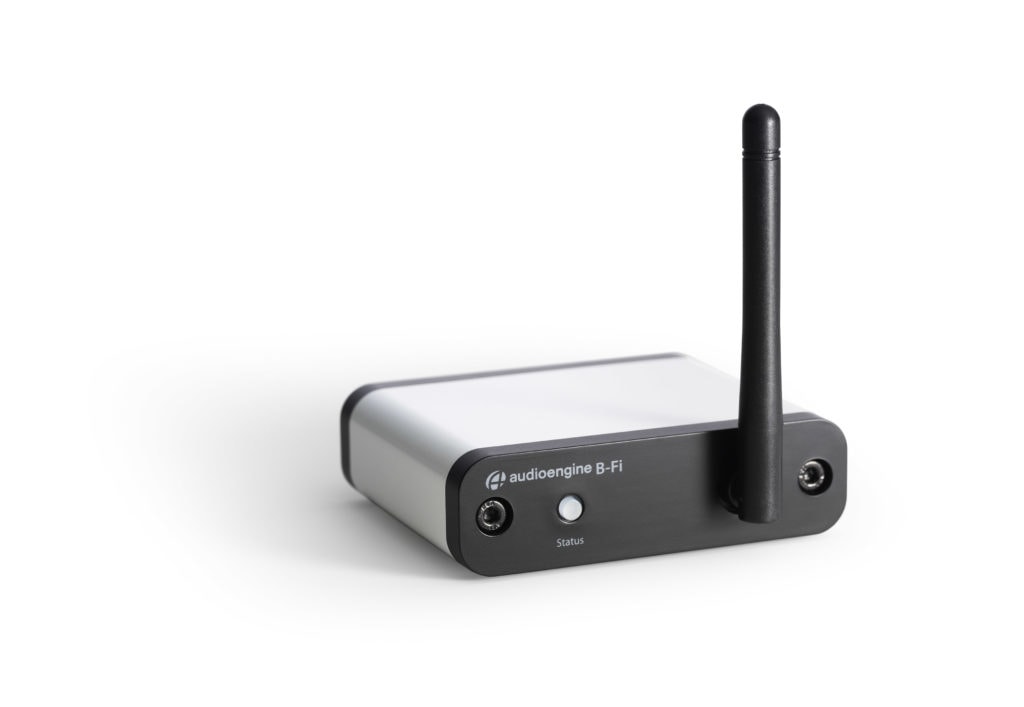
B-Fi Multiroom Stereo Adapter w/Wi-Fi (Discontinued)
The B-Fi is a wireless audio adapter that connects classic stereo receivers and speakers to smartphones and computers via Wifi. It is the bridge that lets you connect your modern high fidelity streaming music to your older analog or digital equipment.
With B-Fi:
- Stream with Airplay, Spotify, TIDAL or Amazon Music players directly
- Stream CD or 16 bit audio
- Connects to all online streaming services and personal libraries
- Allows for grouping(s) of multiple B-Fi adapters
- Cast audio to one or many B-Fi units simultaneously
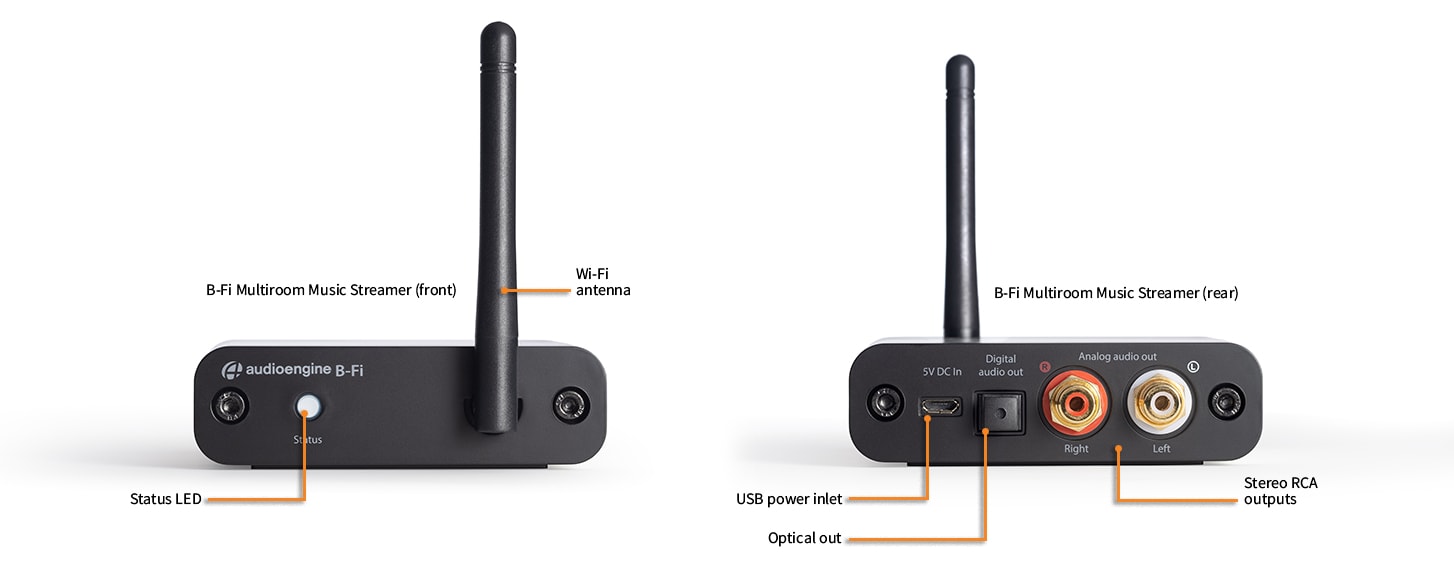
- Utilizes a high fidelity 16 bit DAC with optical and RCA output
Technical Specifications
General Specifications
Wi-Fi Input
802.11 b/g/n (2 GHz)
Audio output
Analog, optical
Output level
2V RMS
Sample rates
32 – 44.1kHz
Bit depths
16 bit
Interfaces
AirPlay, DLNA, UPnP
Processor
AP8064 ARM
DAC
ES9023
Signal-to-noise-ratio
-105dB
Distortion
THD+N, 0.01%
Power
Micro USB
Power requirements
5V, 300ma
Product dimensions
3.5 x 3 x 1
Product weight
5 oz.
Shipping weight
1.0lbs (0.5kg)
Shipping box dimensions
11 x 7 x 3
Environmental Requirements
Operating temperature: 32° to 105°F (0°C to 40°C)
Storage temperature: -4°0 to 115°F (-20°C to 46°C)
Relative humidity: 5% to 95% non-condensing
Included accessories
RCA audio cable (3ft/1m)
Power adapter with detachable cable
Microfiber bag
Setup guide
Quickstart Guide
B-Fi Quick SetupStep 1: Download the free Audioengine app from the Apple App Store for iOS or from Google Play for Android. This is what you need to set up and configure your B-Fi. No need to install or open this app yet as we first need to connect B-Fi to your music system.
Step 2: Connecting B-Fi to your music system
Step 3: Connect the included RCA audio cable (or TOSLINK digital optical cable) between B-Fi and your music system or powered speakers.
Step 4: Connect the included power cable between the power supply and B-Fi, then plug the power supply into a functioning power outlet.
Step 5: Turn on your music system and set the volume level so you can hear the voice and audio prompts during setup.
Step 6: The B-Fi Status button will blink rapidly for 15 seconds, then a piano tone will play through your music system. The B-Fi Status button will now blink more slowly and a voice will say: “Entering setup mode. Follow the instructions in the app to finish the setup.”
If no piano tone or voice is heard after 15 seconds, check your music system volume level.
B-Fi will remain in setup mode (slow-blinking Status button) for 5 minutes before timing-out.
To go back into setup mode, press and hold the B-Fi Status button for about 5 seconds until you hear the voice prompt again.
Connecting B-Fi wirelessly to your internet router.
As device screens seem to constantly change with updates and not all Android menus are identical, the easiest way to get through this setup is to follow the instructions directly in the app and listen to the voice prompts through your music system.
During setup we recommend that your phone, B-Fi, and wireless internet router are within 15 feet of each other. You may need your wifi password if it’s not already saved on your device.
Step 7: Install the previously downloaded Audioengine app onto your iOS or Android device.
Step 8: Open the app and select “OK” if you want the app to access your music library on your device.
Step 9: The app will say “Searching for Audioengine Wireless Hi-Fi System.” Select “Add Device”.
Step 10: Following the app instructions, select “Settings” to leave the app and go into your device’s wifi settings.
Step 11: Turn on your device’s wifi and select “Audioengine B-Fi” from your wifi list.
Step 12: The audio voice will respond “You are now connected to your speaker. Follow the instructions in the app to finish the setup.”
Step 13: Go back into the Audioengine app.
Step 14: B-Fi works on 2.4G, so select 2.4G network from your wifi list and enter your internet router password if prompted to do so.
Step 15: The voice will then say “Connected to your wifi network.” Select “Next”.
Step 16: Rename B-Fi if you wish, then select the right arrow at the top of the screen.
Step 17: Swipe left 2 times to get to your music or exit the app and go to another player.
Having trouble? Try moving B-Fi and your device closer to your router. Restart your router, device, and B-Fi.
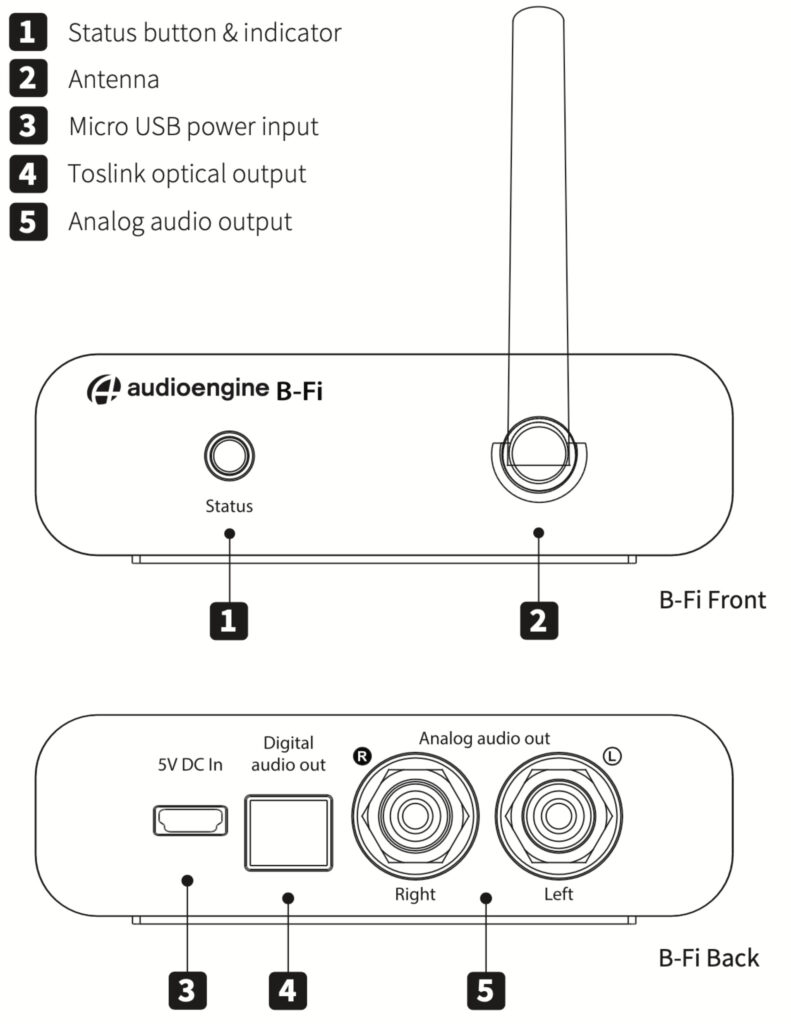
For the full setup guide, download the attached PDF: B-Fi quick start-web
Troubleshooting
B-Fi Troubleshooting TipsThe following troubleshooting tips can help diagnose and correct most concerns with the B-Fi. We have attempted to make this list as comprehensive as possible, so some of these may not apply to your issue, but please go through each tip. If the problem persists and your B-Fi is located within the US, please provide us with the following information: serial number, purchase information (when and where), your current shipping address, and the results of each step.
If your B-Fi is outside of the US, we are unable to offer product services, but please use the below link to contact the distributor in the country where the B-Fi is located. Since the distributor is who will be assisting you from this point on, they will be able to let you know what options you may have. Be sure to still include your full name, where and when your B-Fi was purchased, the serial number, and your current shipping address when contacting any distributor:
https://audioengineusa.com/international-distributors
If you haven’t already, power cycle your B-Fi by unplugging the power connection, and reconnecting it.
1) Please make sure all of your connections are complete and all of your connector cables are in working order (you will want to swap out some interconnects to test for this).
2) Try playing audio from more than one application on the source device you typically use to connect to your B-Fi (phone, tablet, computer, etc)
3) Check to make sure your source device is running the most up to date version of software available. If an update is available, make sure you restart your device after the update is installed. For Mac users, be sure to check the App store to see if there’s a newer version of Mac OS you could be running.
4) Try resetting your B-Fi. Press and hold the status button on the front panel until you hear the voice prompt.
5) Try using a different source device with your B-Fi to see if the issue follows. Try using the analog as well as the digital optical output, to see if you have this issue with both connections.