
Sign Up
(£) GBP (Default)
  • (kn) HRK
  • (£) GBP
  • ($) USD

Tech Specs

Private: D2 Wireless DAC

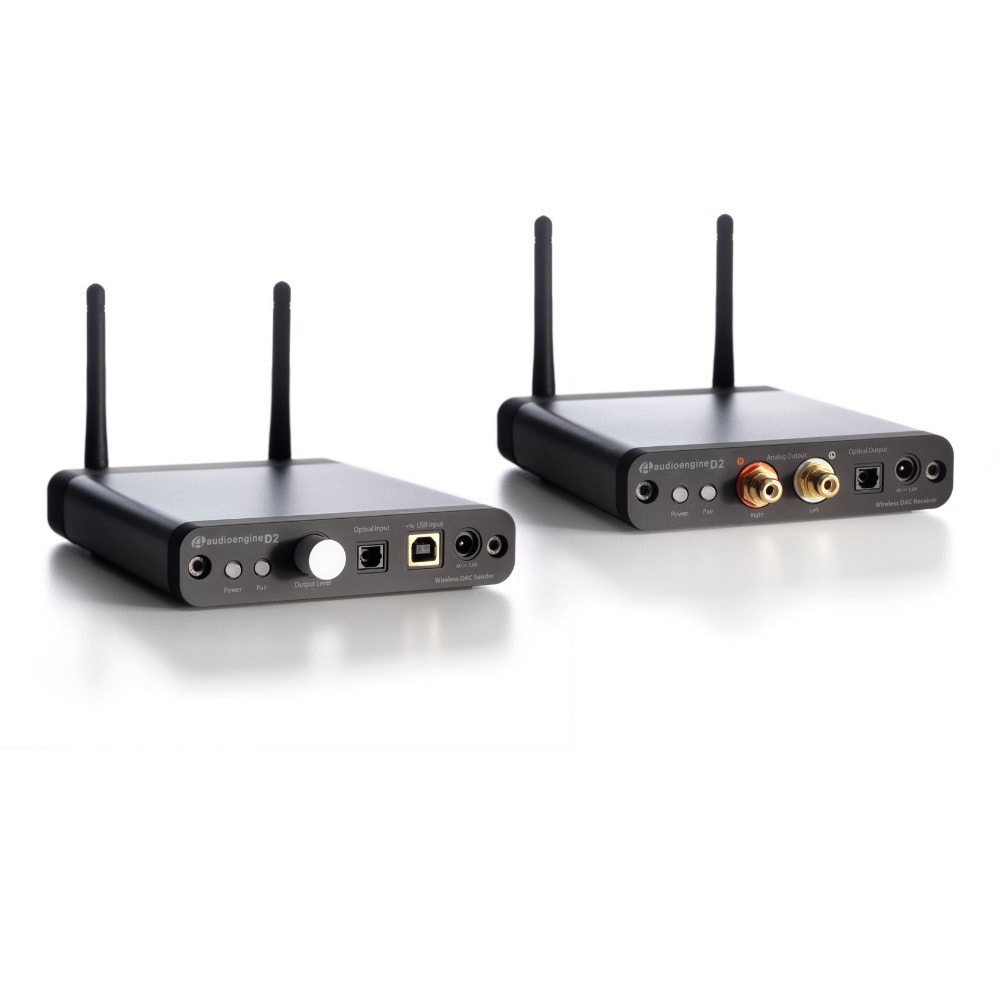
The D2 24-bit Wireless DAC allows you to stream wireless HD audio from your computer to any music system.

Technical Specifications
General specifications

DAC type
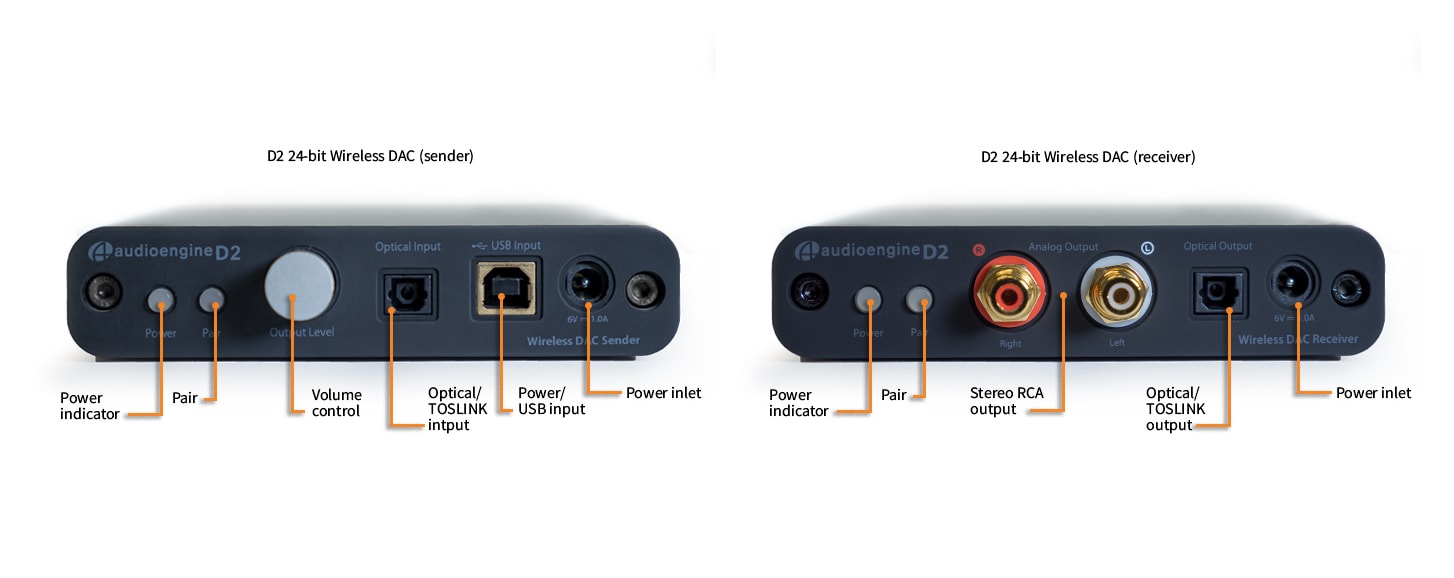
Dual Mode USB and Optical (SPDIF) wireless DAC

Inputs
USB/Optical (SPDIF)

Outputs
RCA Stereo/Optical (SPDIF)

D/A converter
PCM1792A

Optical receiver
AK4117

USB controller
TI1020B

Full-scale output
2.0V RMS

Output impedance
100 ohms

Power source
Sender: USB 5V or included external supply
Receiver: Included external supply

Power requirements
Sender: 270mA, 5V
Receiver: 300mA, 5V

USB power filtering
3-stage redundant regulation

SNR
(DC to 20 kHz) >115dB

THD+N
(1kHz FS 96kS/s) <0.0015%

Crosstalk
<-85db

Frequency response
10Hz-30KHz (+/- 0.5dB)

Input bit depth
24 bit (upsampled)

Input data rate
96kHz – native playback
44.1kHz, 48kHz, 188.2kHz, 192kHz – re-sampled to 96kHz for playback

USB device class
type 1.1 or above

Wireless range (typical)
>100ft

Latency
<20ms

Receivers supported
Up to 3

Product dimensions
4.75×5.5×1″

Shipping weight
4lbs (2.0kg)

Shipping box dimensions
15x9x5″

Environmental
Operating Temperature: 32 to 95 degrees F
Non-operating Temp: -4 to 113 degrees F
Relative Humidity: 5% to 95% non-condensing

Included accessories (D2 Sender)
USB cable, 2ft
Power adapter with detachable AC cord
Microfiber bag

Included accessories (D2 Receiver)
RCA cable, 6.5ft
Power adapter with detachable AC cord
Microfiber bag
Setup Guide

Advantages of wireless
The D2 wireless system transmits bit-perfect PCM-stereo simultaneously to up to 3 receivers. This PCM stream is routed from/to the various components of the system (optical transmitter/receiver, USB controller, and DAC) via the I2S bus, which maintains data integrity throughout the system. Because the various source/sink components are segregated by the wireless subsystem, various anomalies which plague many wired DACs such as jitter, grounding, and induced cable noise are greatly reduced. In addition, the D2 allows the user to physically isolate a potentially noisy computer from the sensitive audio components in your system.

D2 USB
The D2 utilizes the TI1020B USB controller chip, widely recognized as the industry standard for higher-end USB audio products. The Sender can be powered directly from the USB bus or from the included external power adapter. The USB power is passed through two stages of regulation to ensure high stability and low noise.

D2 DAC
The D2 Receiver utilizes the PCM1792 DAC, widely known for it’s low noise and high fidelity. Due to the PCM1792’s high signal-to-noise specs and the added benefit of triple redundancy power source conversion and filtering, the D2 presents impressive low noise and low distortion characteristics.

I2C Volume Control
The D2 incorporates a separate-path wireless channel to transmit volume information from the Sender volume control to the analog section of the Receiver. This means that the volume information never affects the digital audio stream.

D2 and LAN
The D2 system divides the band between 2405 MHz and 2477 MHz into 37 discrete, 2 MHz wide channels. Channels numbered 2 through 38 inclusive are used for system operation. The system scans the spectrum and selects two channels that are 18 channels (or 36 mHz) apart and transmits with 50% of the time on one channel (for example channel 2) and 50% on the other channel (for example channel 20). The system stays on these selected channels until the error detection rate reaches a predetermined level indicating deteriorating RF conditions. The system will then select a cleaner channel for transmission and move there without any drop in audio. In this way the D2 not only maintains it’s own audio integrity, but co-exists nicely with other LAN devices.

Troubleshooting

D2 Troubleshooting Tips

The following troubleshooting tips can help diagnose and correct most concerns with the D2. We have attempted to make this list as comprehensive as possible, so some of these may not apply to your issue, but please go through each tip.

  1. First, restart your computer and make sure your computer’s OS and all related apps are up-to-date.
  2. Make sure all of your connections are complete and all cables are in working order by unplugging the cables and then reconnecting.  Try using the included USB cable if you are not already.
  3. Power your D2 sender with and without the external power adapter to see how this affects your issue.
  4. Remove all other USB devices temporarily to see how this affects the problem.  Audio over USB requires a lot of bandwidth.  USB ports can share a bus internally and can also share their bus with devices internally as well.  Because of this some ports may not perform with full bandwidth, so try to make sure the D2 is on a bus all by itself.
  5. Try different bit depths and sample rates.  On a Mac these settings are under Applications –> Utilities –> Audio MIDI Setup.  Try using both 16-bit as well as 24-bit.
  6. Try using a different media player (iTunes, Windows Media Player, WinAmp, etc) and file types (MP3, ALAC, FLAC, etc).
  7. If you’re using the optical input on your D2 be sure your source (computer, TV, CD/DVD player, etc) is set to PCM Stereo output and not Dolby Digital or DTS.
  8. Try your D2 in a different location to see if something is causing an issue in the current setup.  Something as simple as a wireless internet router, cordless or mobile phone, or halogen lamp near the speakers may be causing interference in your setup.

D2 troubleshooting tips – USB DAC

Try these tips if your computer is not recognizing the D2 the USB input or the sound through USB isn’t functioning correctly:

If you are using Windows, uninstall the USB driver from your computer.  Then disconnect the USB cable to remove the D2 from your computer and plug it back in to allow the driver to re-install automatically.  You can find instructions from Microsoft on how to reinstall a plug-and-play device under Windows here.

If you are using a Mac, try a NVRAM/PRAM reset.  This resets the system configurations for some audio and video related things and can many times help clear up problems related to audio.  See Apple’s support page for information on how to do this. Also, be sure to check the App store to see if there’s a newer version of Mac OS you could be running.

D2 troubleshooting tips – wireless interference issues

  1. Try changing the channel of your Wi-Fi router to 1 or 11. This can be done with an Apple router using Apple’s Airport Utility software.  On most other routers, these settings can be accessed by logging onto the router’s IP address through a web browser.
  2. Keep as much room between the D2 sender and receiver units and other wireless devices as possible.  At least 2 or 3 feet is recommended.
  3. Try temporarily moving the powered D2 sender unit as close as possible to your wireless router.  Leave it there for just a few minutes and then place it back into your setup and retest.  This may allow the D2 to train itself to “steer clear” of the signal.
  4. We have found that every now and then the placement of the computer’s antenna in relation to the USB port can have an effect on the D2.  One thing you could try is to move the D2 further from the computer by using a USB extension cable.  If using a Mac laptop, try the USB port furthest away from the display (which is generally where the wi-fi antenna is located).
  5. Also consider upgrading to a new wireless internet router if yours is older than 3 or 4 years.  Newer model routers handle interference much better than older routers.
Select the fields to be shown. Others will be hidden. Drag and drop to rearrange the order.
  • Image
  • SKU
  • Rating
  • Price
  • Stock
  • Availability
  • Add to cart
  • Weight
  • Dimensions
Click outside to hide the comparison bar
Compare